What Is BIOS Boot Order? The Complete Setup Guide
Have you ever struggled to get your computer to start from a USB drive or a recovery disk? Many users face frustration when their PC ignores external hardware, causing startup errors or booting into the wrong system. By understanding what is bios boot order, you regain full control over your device’s startup process. This guide provides the exact steps to modify your boot priority, ensuring your computer always starts exactly how you need it to.
What Is BIOS Boot Order?
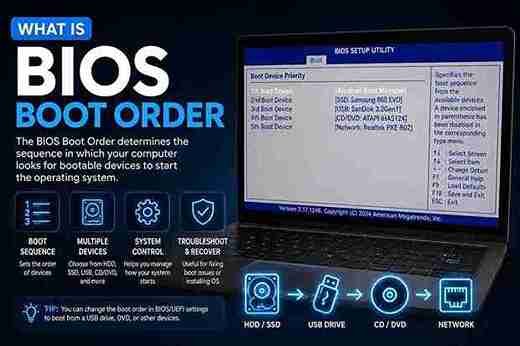
The what is bios boot order question refers to a specific priority list stored in your motherboard’s firmware. When you power on your machine, the Basic Input/Output System (BIOS) or the modern Unified Extensible Firmware Interface (UEFI) scans a pre-configured list of connected devices. It searches for a valid operating system to load. If it finds one on the first device, it proceeds; if not, it moves down the list to the next available hardware.
Why BIOS Boot Order Matters
Understanding what is bios boot order is vital for maintenance and troubleshooting. It determines whether your computer boots from your primary internal hard drive (SSD/HDD), a diagnostic USB stick, or an external optical drive. Proper configuration is the key to installing fresh operating systems, running security scans, or recovering data from a crashed Windows partition.
Understanding the Difference: UEFI vs. Legacy
Modern computers use UEFI, while older systems rely on Legacy BIOS.
- UEFI: The modern standard. It supports faster boot times, larger storage drives, and enhanced security features like Secure Boot.
- Legacy BIOS: The older method. It uses a text-based interface and is primarily for older hardware compatibility.
Standard Boot Device Priorities
When looking at what is bios boot order, most systems follow a default hierarchy to ensure a smooth transition to your OS.
| Priority Level | Typical Device Type | Purpose |
| #1 | OS Boot Manager | Main Windows or Linux loader |
| #2 | USB Flash Drive | Tools, installers, or recovery |
| #3 | Optical/CD-ROM | Legacy media and older installers |
| #4 | Network Adapter | PXE booting for corporate environments |
How to Access Your BIOS Setup
To manage what is bios boot order, you must enter the firmware menu during startup. Press the specific function key for your motherboard or laptop model—commonly F2, F10, F12, DEL, or ESC—immediately after turning on the power.
Step-by-Step: Changing Your Boot Priority
Once you understand what is bios boot order, follow these steps to modify your settings:
- Restart your PC and tap the BIOS access key repeatedly.
- Navigate to the Boot or Startup tab using your keyboard’s arrow keys.
- Locate the list showing your connected drives.
- Use the + or – keys to move your desired device to the #1 position.
- Press F10 to save your changes and exit.
Common Challenges and Solutions
If your system refuses to boot from a specific device, check if the device is correctly formatted. A bootable USB must contain a valid, recognized operating system structure, or the BIOS will skip it. Always ensure your hardware connections are secure.
Troubleshooting Boot Errors
If you experience an “Operating System Not Found” error, your what is bios boot order configuration might be pointing to an empty drive. Verify that your primary storage device containing Windows is set as the first priority.
Security Benefits of BIOS Control
Properly managing your what is bios boot order adds a layer of security. By disabling booting from external USBs, you can prevent unauthorized access to your computer’s local files via external recovery tools.
The Role of Secure Boot
Modern systems include Secure Boot to protect the startup sequence from malicious software. When configuring what is bios boot order, ensure your bootable media is compatible with your security settings, as restrictive modes may block unrecognized drives.
Summary of Key Settings
When modifying your what is bios boot order, always prioritize your primary storage drive for daily use. Keep secondary devices like USBs lower in the priority list to avoid accidental boot interruptions.
Frequently Asked Questions
1. What is bios boot order used for?
It dictates which hardware device the computer checks first for an operating system, allowing you to boot from USBs or alternative drives.
2. How do I know if my PC uses BIOS or UEFI?
Press Win + R, type msinfo32, and look for “BIOS Mode” in the system summary to see if it is set to Legacy or UEFI.
3. Will changing my boot order delete my data?
No, changing the what is bios boot order simply tells the computer where to look for an OS first; it does not alter your files.
4. Can I reset my boot order to default?
Yes, most BIOS menus have an option under the “Exit” or “Save” tab to “Load Setup Defaults” or “Apply Defaults”.
5. Why doesn’t my USB show up in the boot list?
Ensure the USB is formatted as bootable, try a different port, or confirm that your BIOS settings allow booting from removable media.
6. What is the standard key to enter BIOS?
Common keys include F2, F10, F12, or DEL, depending on your manufacturer.
Final Thoughts
Mastering what is bios boot order is a foundational skill for any PC user. By taking charge of your hardware startup priority, you can easily troubleshoot system errors, install new software, and keep your machine running efficiently. If you found this guide helpful, please share it with others or bookmark it for your next system upgrade!